We hope this blog finds you well. We have often seen clients unaware of downloading the QIF from Internet banking, and we advise you to please.
ANZ
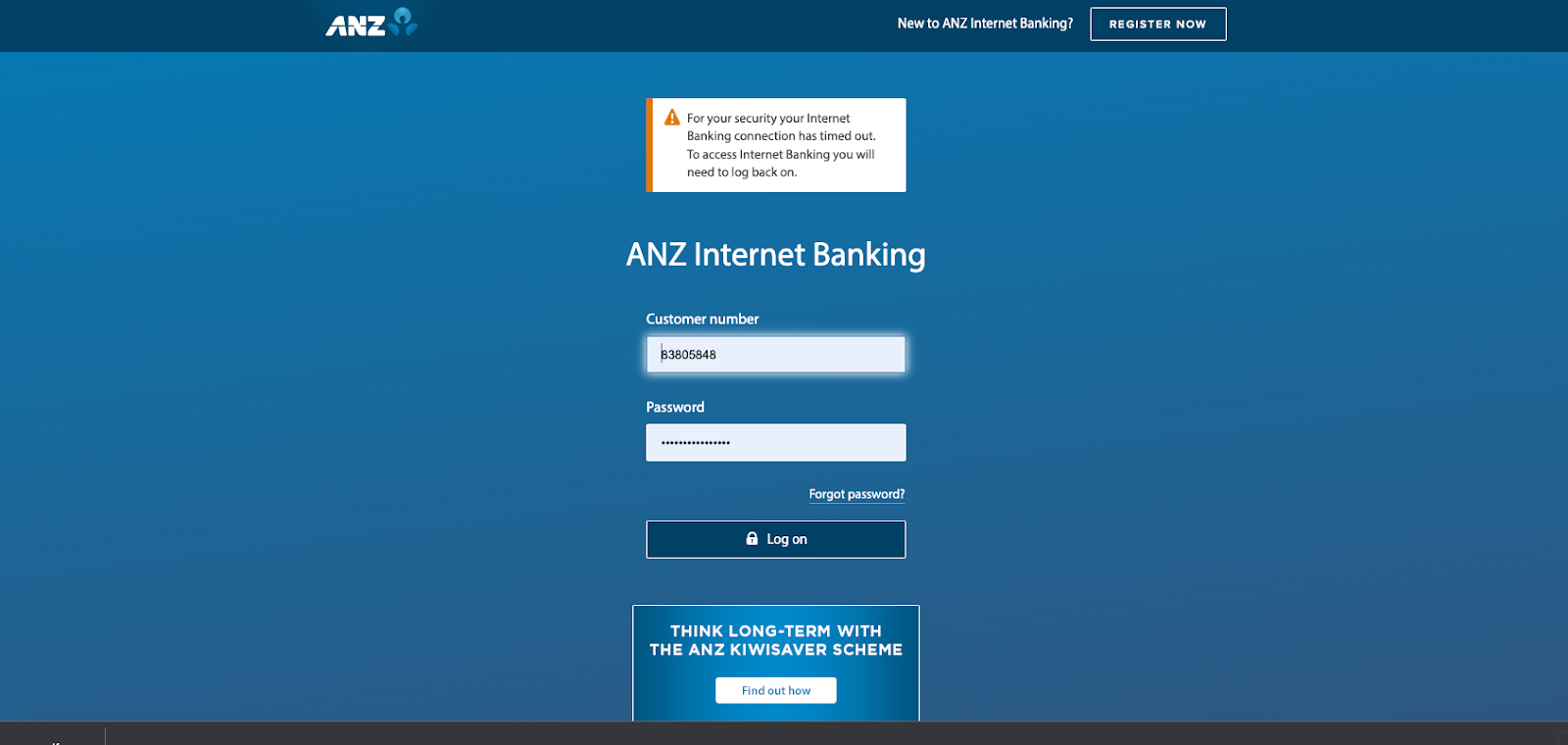
Step1: Login to internet banking via using your internet banking ID and password for the ANZ bank account.
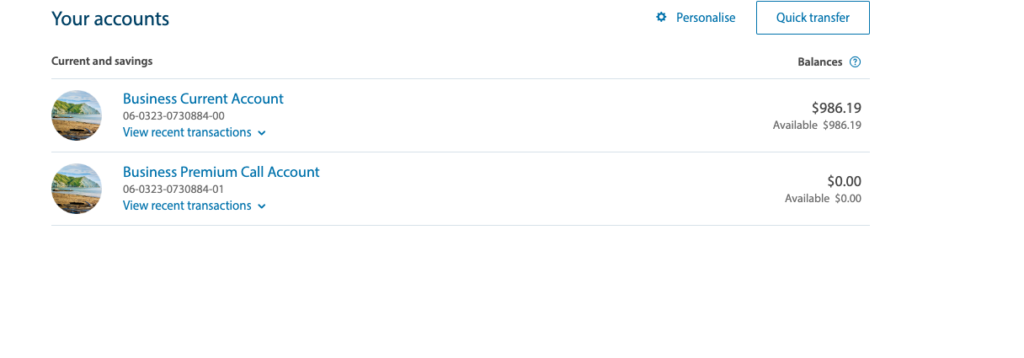
Step 2. Click on the bank account for which you want to download the file
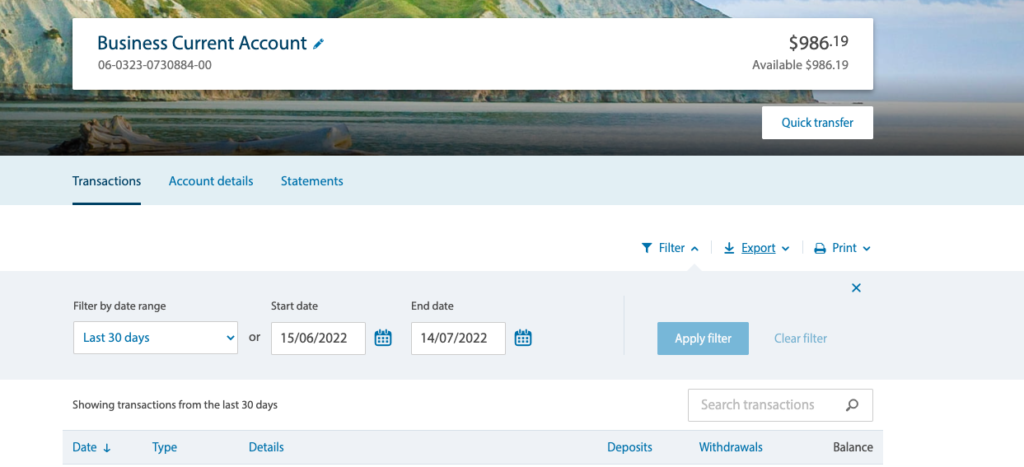
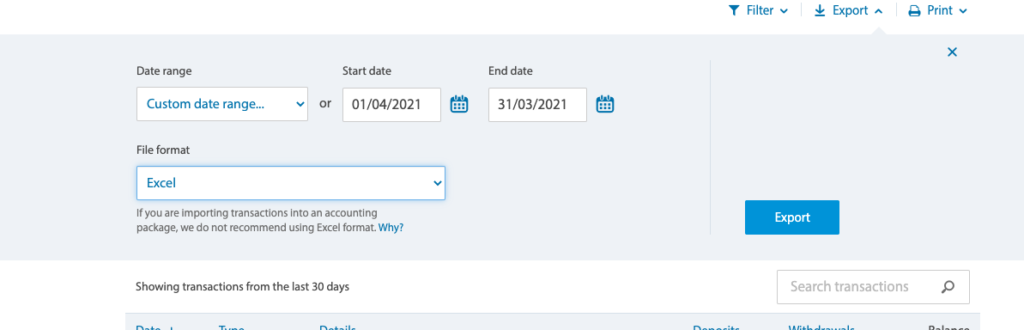
STEP 3: Click on the Export option in the middle of Print and Filter
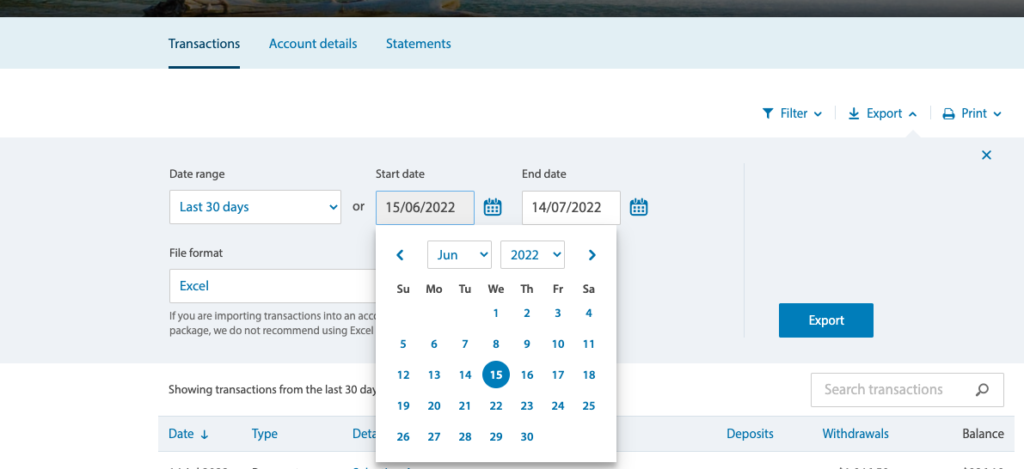
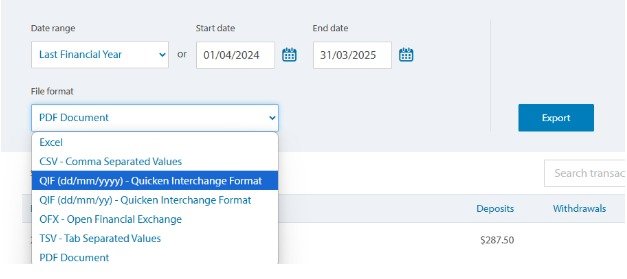
STEP 4: Click on the calendar icons and select the date range from the start date and end date.
Step 5: Click on the third option (QIF (dd/mm/yyyy) – Quicken Interchange format.
Step 6: Click on the Export option (blue button)
The file will be downloaded to your device; please attach the same file in your email and send that to us.
ASB
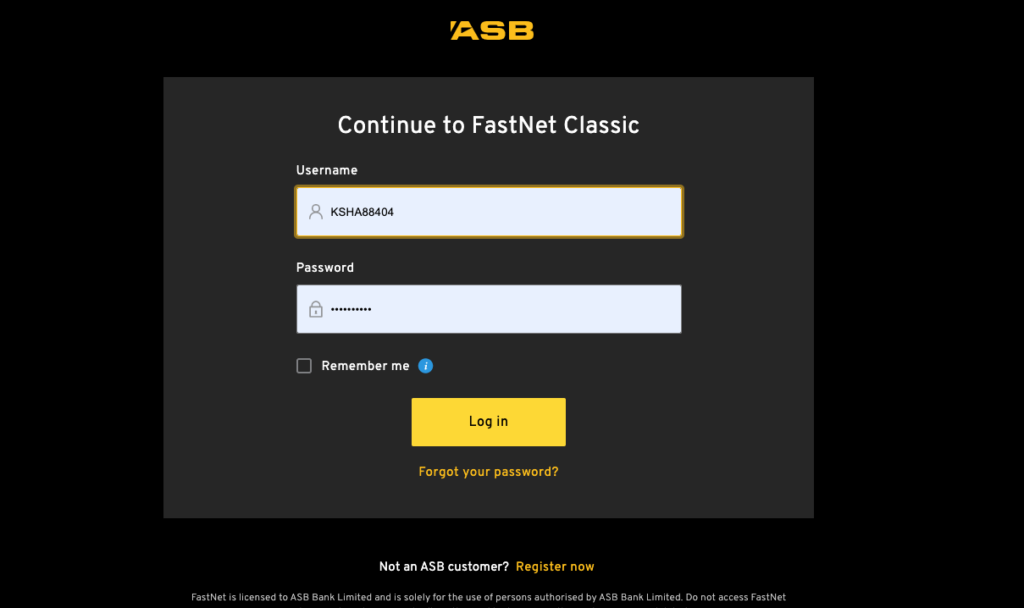
Step1: Login to internet banking via using your internet banking ID and password ASB bank account.
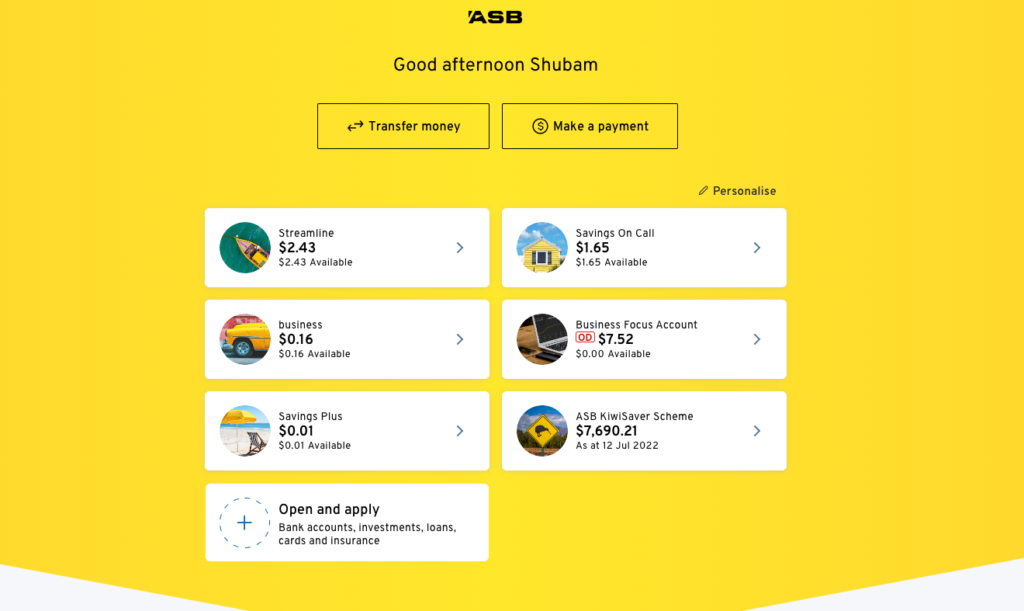
Step 2. Click on the bank account for which you want to download the file
STEP 3: Click on the calendar icons and select from date and to date.
Step 4: Click on the drop-down arrow next to the export option.
Then click on the third option, “QIF – Quicken”
The file will be downloaded to your device; please attach the same file in your email and send that to us.
Kiwi Bank
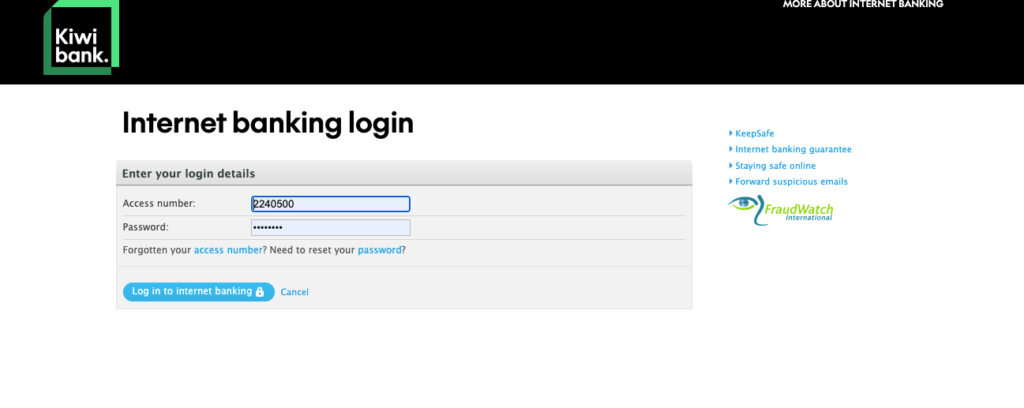
Step1: Login to internet banking via using your internet banking ID and password for Kiwi Bank .
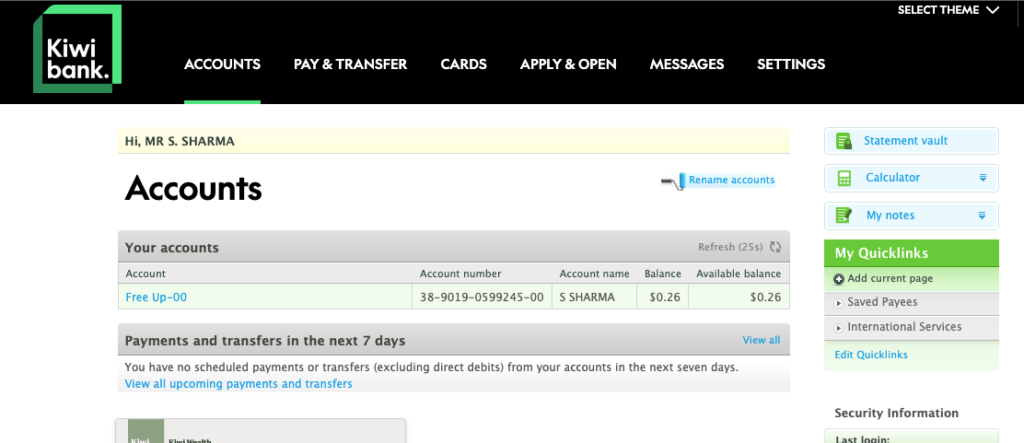
Step 2. Click on the bank account for which you want to download the file.
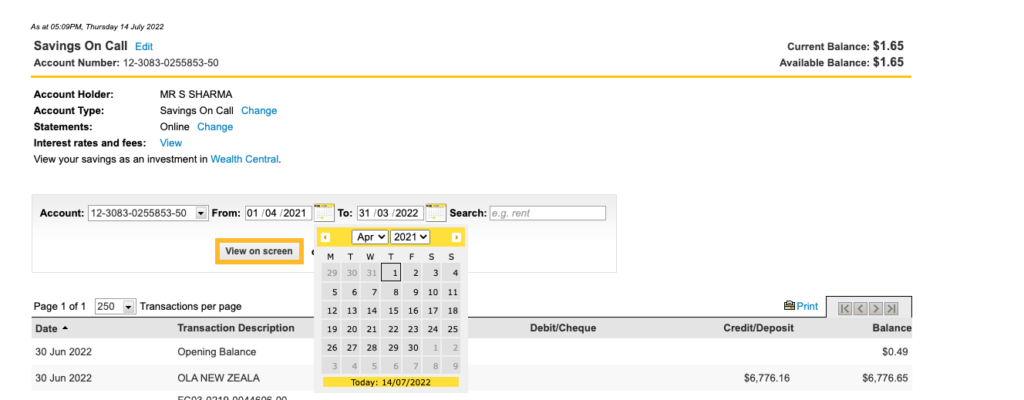
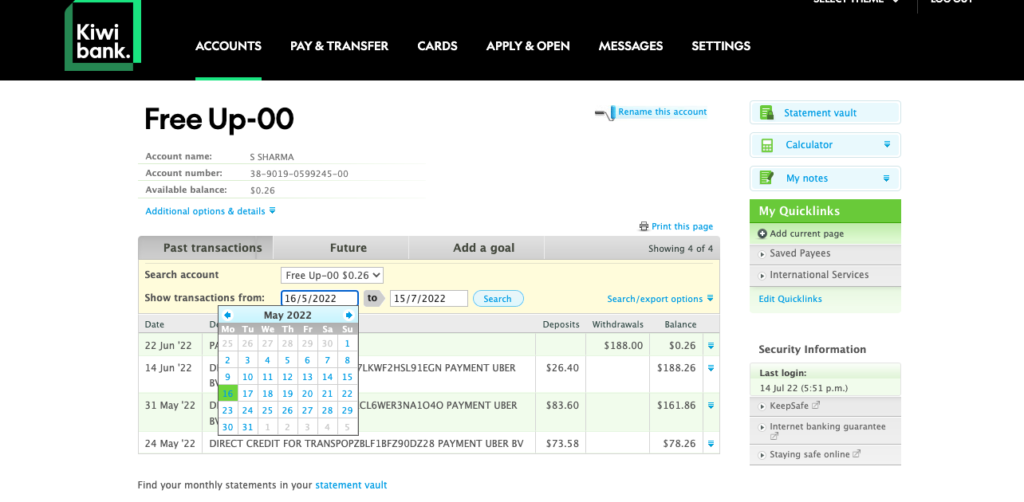
STEP 3: Click on the “search/export option” Click on the calendar icons and select from date and to date.
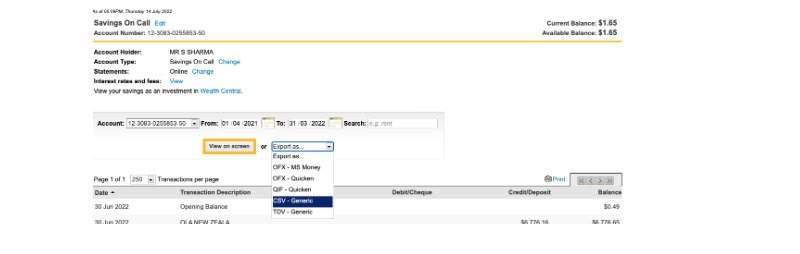
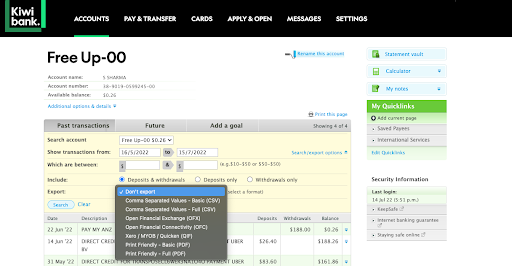
Step 4: Click on the don’t export drop-down and select the fifth option, “Xero / MYOB / Quicken (QIF)”
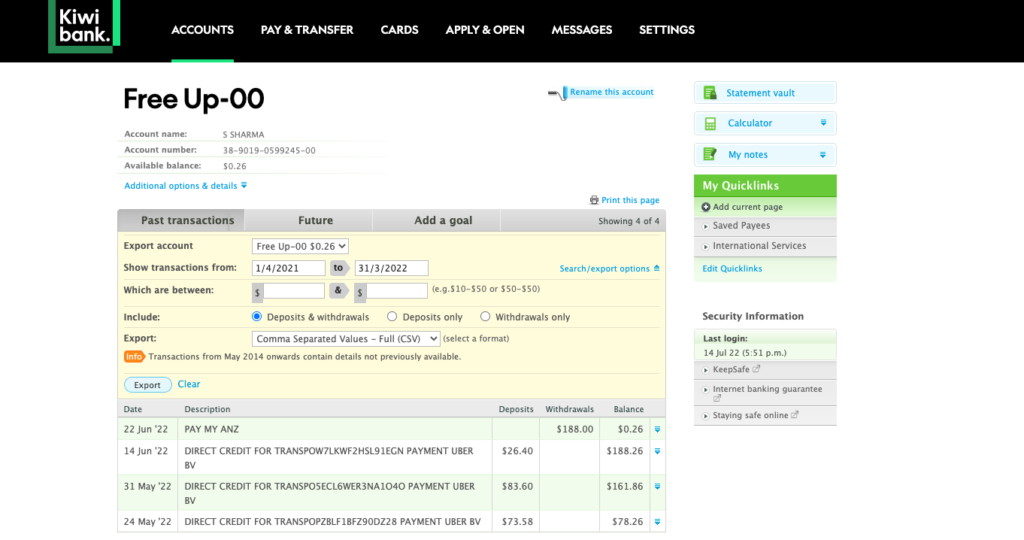
Step 5: Click on the export button:
The file will be downloaded to your device; please attach the same file in your email and send that to us.
Westpac
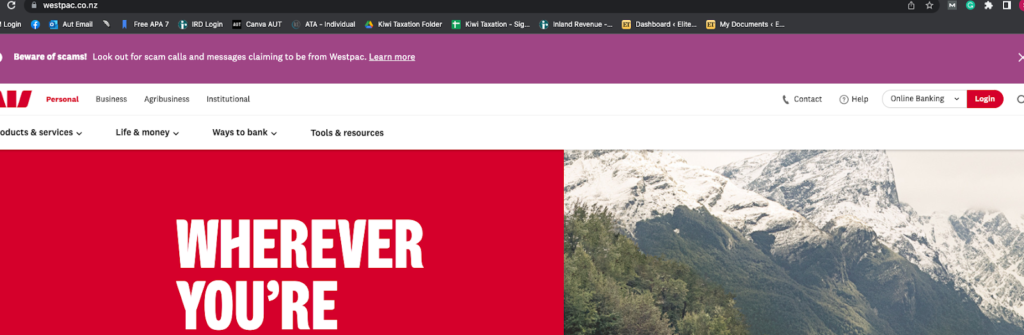
Step1: Login to internet banking via using your internet banking ID and password for Wespac.
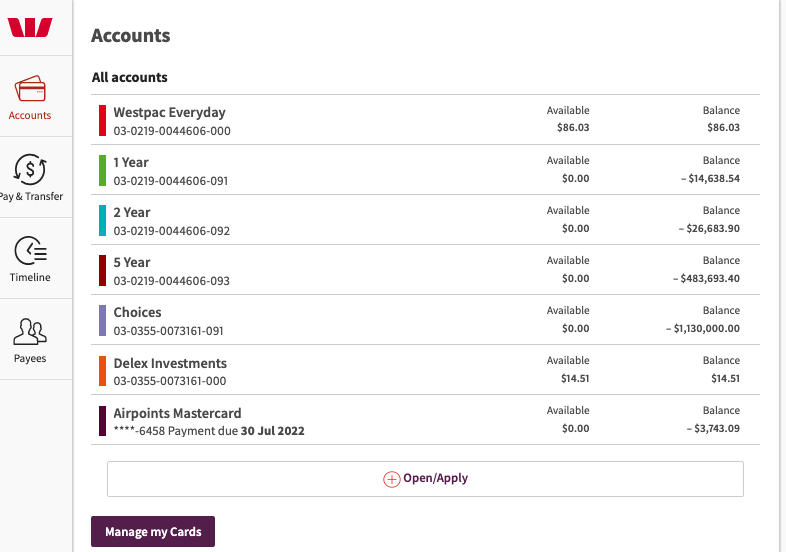
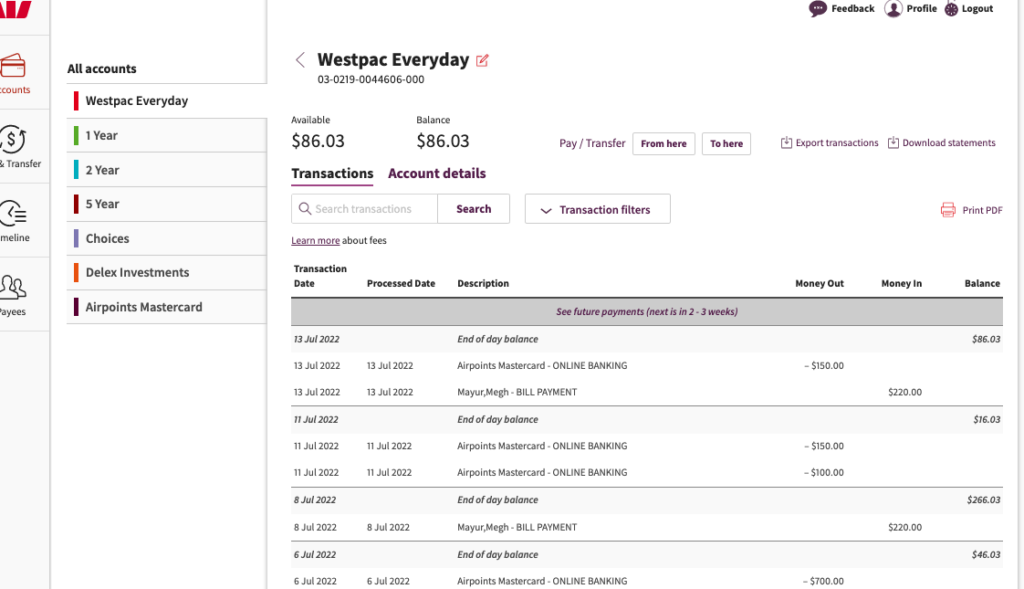
Step 2. Click on the bank account for which you want to download the file.
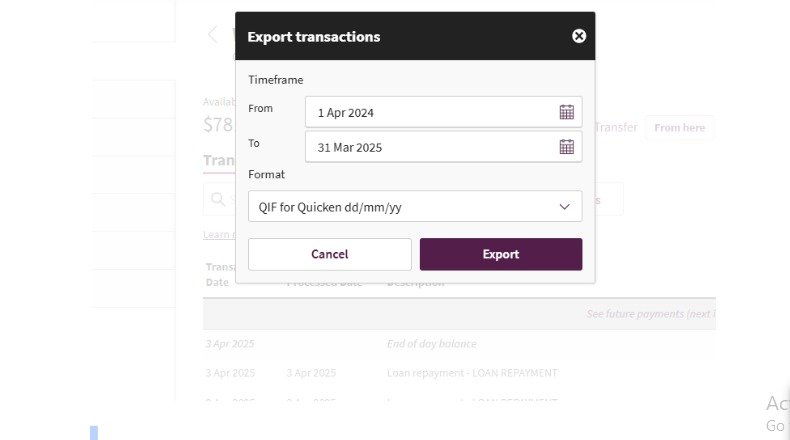
STEP 3: Click on the Export option
Step 4: A calender will pop on your screen, please select the date “From” and “to”, change the format of the file to “QIF for Quicken dd/mm/yy, and hit the export option.
The file will be downloaded to your device; please attach the same file in your email and send that to us.
BNZ
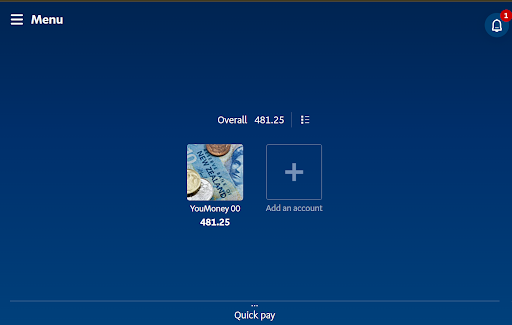
Step1: Login to internet banking via using your internet banking ID and password for BNZ.
Step 2 – Click on “Export” option.
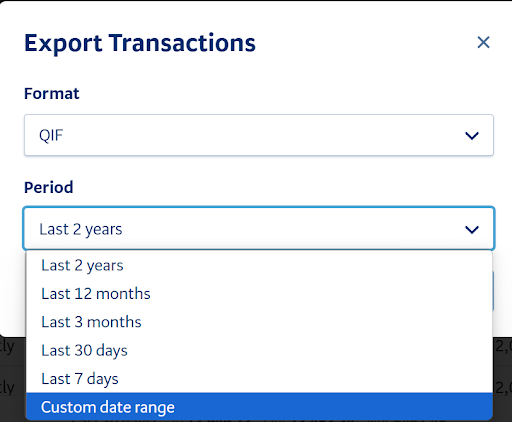
Step 3 – Select the “QIF” option and “Custom date range”.
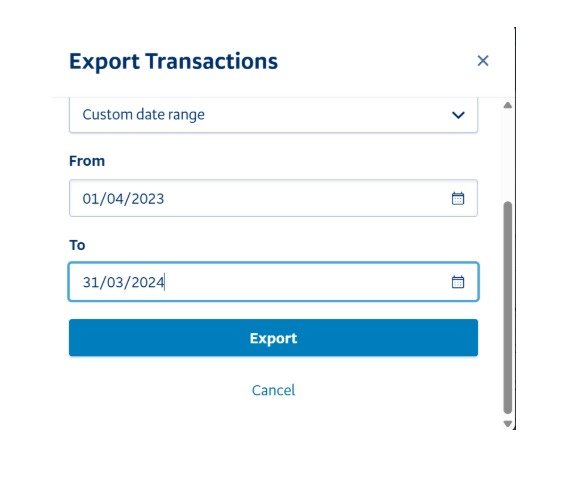
Step 4 – Enter the specific dates you want to fetch the data for and click on export.